
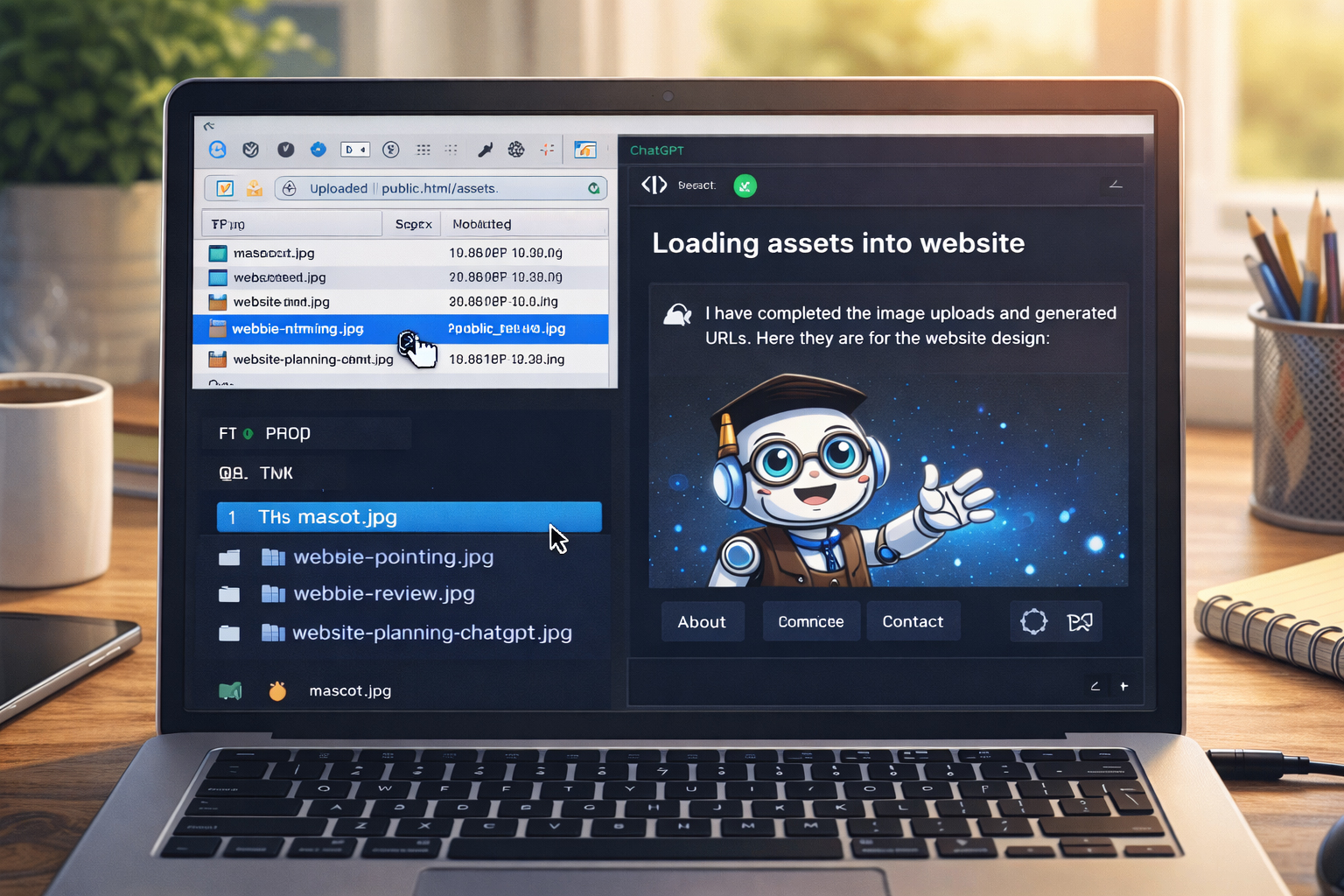
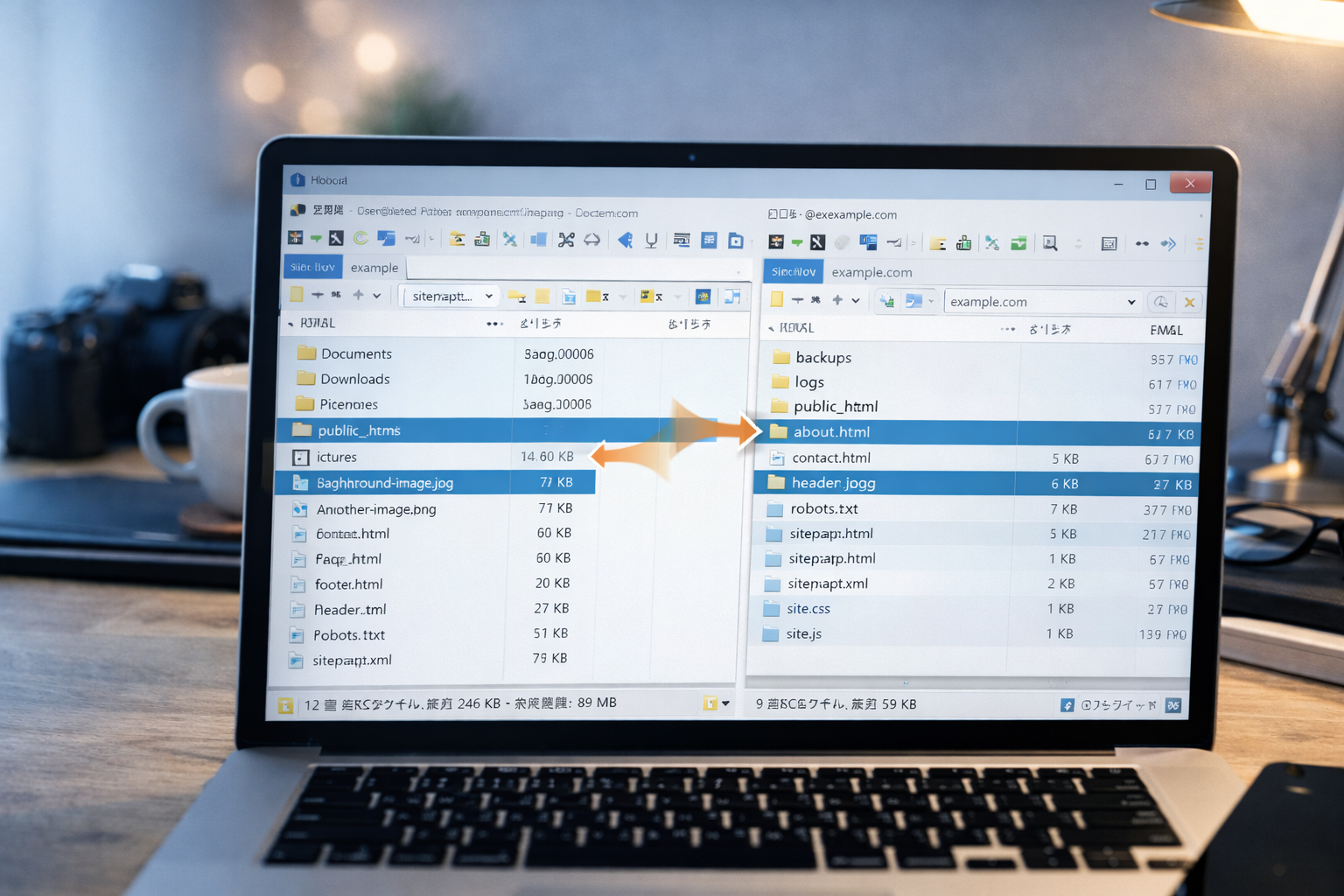

This is where image planning becomes HTML discipline.
Once your images have live URLs, ChatGPT can stop imagining what assets might exist and start building pages around assets that actually do exist.
Why this step matters so much
Many people upload images, then move on too quickly. They forget the most useful follow-up step: saving the real live URLs in one clean list.
That list becomes incredibly valuable because later, instead of saying:
Use a hero image and a Webbie image.you can say:
Use:
https://website.co.jp/images/make-website-hero-main.jpg
https://website.co.jp/images/webbie-pointing.jpg
https://website.co.jp/images/website-workflow-diagram.jpg
That is a huge upgrade in precision.
Real image URLs give ChatGPT something stable to build around.
This reduces placeholder behavior, cuts down on made-up asset references, and helps the HTML stay anchored to real files.
What a live image URL is
A live image URL is the actual web address where your uploaded image now lives.
Example
If this file is uploaded:
/public_html/images/website-putty-terminal.jpgthen the live URL may be:
https://website.co.jp/images/website-putty-terminal.jpgThat is the version your HTML should eventually use.
Why not just remember them mentally?
Because memory is weaker than a clean list.
This training site strongly recommends:
- save the approved image URLs in a text list
- group them logically
- reuse the list in later prompts
That method is much more stable than hoping you will remember every filename correctly.
Do not ask ChatGPT to “remember the images” without also keeping your own list.
A much stronger workflow is to store the approved image URL list and feed it back methodically during page generation.
What a good image URL list looks like
A strong list is:
- clean
- grouped by purpose
- easy to paste into later prompts
- limited to approved assets
- stable over time
Example: grouped image URL list
Hero images
https://website.co.jp/images/make-website-hero-main.jpg

Mascot images
https://website.co.jp/images/webbie-icon-square.jpg
https://website.co.jp/images/webbie-header-logo.jpg
https://website.co.jp/images/webbie-mascot.jpg
https://website.co.jp/images/webbie-pointing.jpg
https://website.co.jp/images/webbie-review.jpg
https://website.co.jp/images/professor_webbie.jpg

Workflow and training images
https://website.co.jp/images/website-planning-chatgpt.jpg
https://website.co.jp/images/website-workflow-diagram.jpg
https://website.co.jp/images/website-filenames-first.jpg
https://website.co.jp/images/website-local-preview.jpg
https://website.co.jp/images/website-image-urls.jpg
https://website.co.jp/images/website-homepage-last.jpg
https://website.co.jp/images/website-sitemap-robots.jpg
https://website.co.jp/images/website-section-index-last.jpg

Tool images
https://website.co.jp/images/website-putty-terminal.jpg
https://website.co.jp/images/website-winscp-files.jpg
https://website.co.jp/images/website-vi-editor.jpg
https://website.co.jp/images/website-site-css-js.jpg
https://website.co.jp/images/website-grading-review.jpg
This is already much more useful than a random pile of filenames.
Why grouping helps
Grouping the URLs by purpose helps in at least three ways:
Prompt clarity
You can give ChatGPT only the relevant image group for the page you are building.
Less visual drift
The page is more likely to use images that fit its actual topic.
Less clutter
You do not need to paste the entire image library every time.
How to use the image URL list in practice
Let us say you want ChatGPT to build:
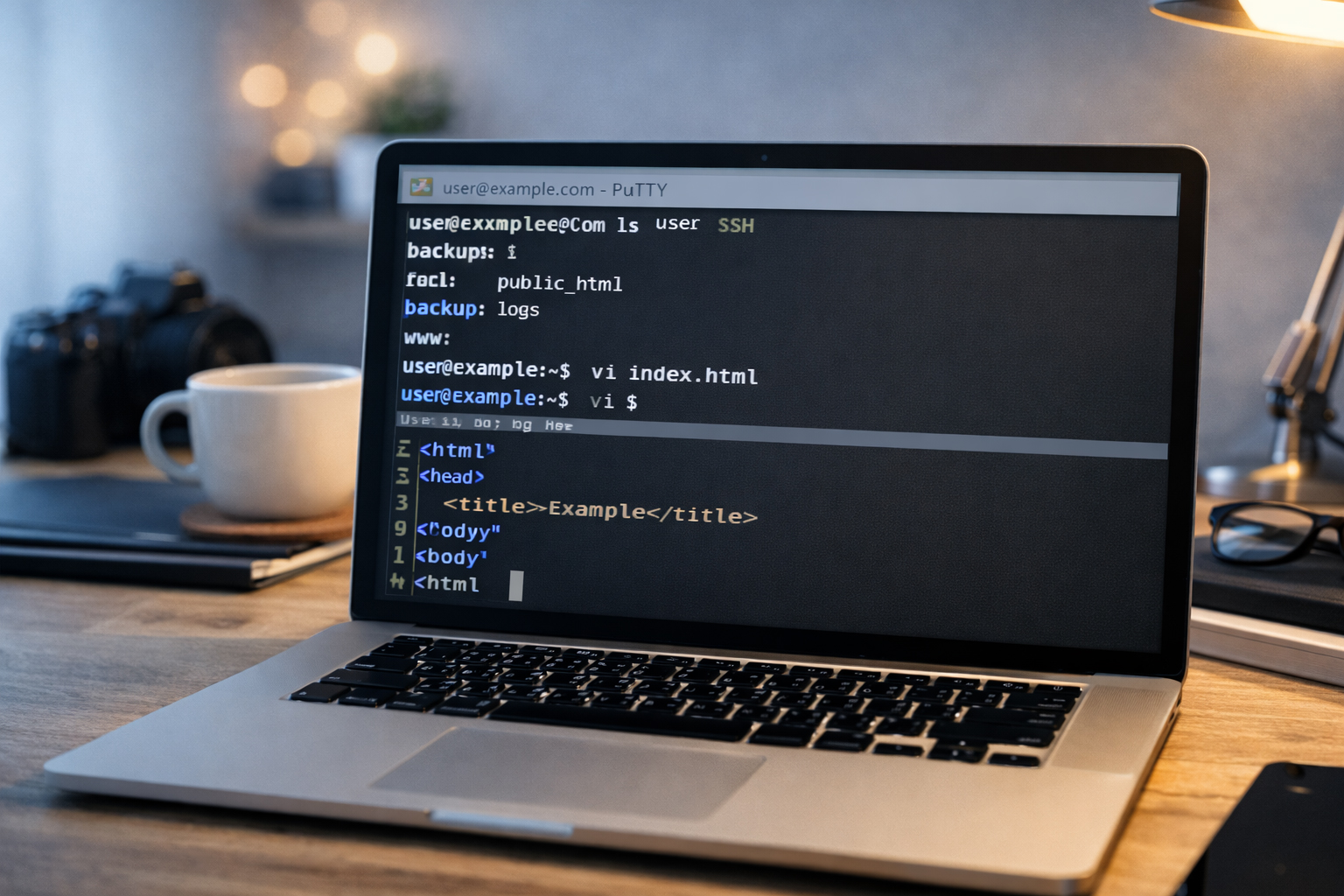
/en/tools/putty-basics.htmlInstead of vaguely saying:
Use a terminal image and a mascot image.you can say:
For this page, use these approved images:
https://website.co.jp/images/website-putty-terminal.jpg
https://website.co.jp/images/webbie-pointing.jpg
https://website.co.jp/images/professor_webbie.jpg

Use the terminal image as the main feature image.
Use Webbie in a callout or advice block.
Keep the page visually consistent with the rest of the site.
That is a much stronger instruction set.
How this reduces ChatGPT tangents
One of the biggest themes of website.co.jp is that ChatGPT works best when you do not leave too many things undefined. Image URLs are a perfect example.
When the model knows the real assets, it is less likely to:
- invent image paths that do not exist
- reuse the wrong image type on the wrong page
- describe visuals in a vague or inconsistent way
- drift away from the site’s visual system
Why this step belongs before more HTML generation
This site recommends saving the image URLs before you continue building many pages because:
- the assets are now on the live server
- the pages can start using the real URLs
- the site becomes more consistent from this point forward
If you skip this step, you often end up rewriting HTML later to replace temporary image references.
The earlier you stabilize your asset URLs, the less cleanup you do later.
This is one of the quiet workflow improvements that makes an entire project feel more professional.
How to store the image URL list
Keep it somewhere simple and reusable. For example:
- a plain text document
- a notes file inside the project folder
- a planning document you keep beside the filename tree
The important thing is not the format. The important thing is that the list is easy to paste into later prompts.
Example notes file structure
website-project-notes.txt

1. Site definition
2. Filename tree
3. Approved image URLs
4. Shared header/footer pattern
5. Progress notes on completed pages
This kind of document becomes very helpful once the site grows.
How image URLs and filenames work together
By now you have two important “master lists”:
- the approved HTML filename tree
- the approved live image URL list
Those two lists give ChatGPT a structure for both page destinations and page assets. That is a big part of what makes this workflow effective.
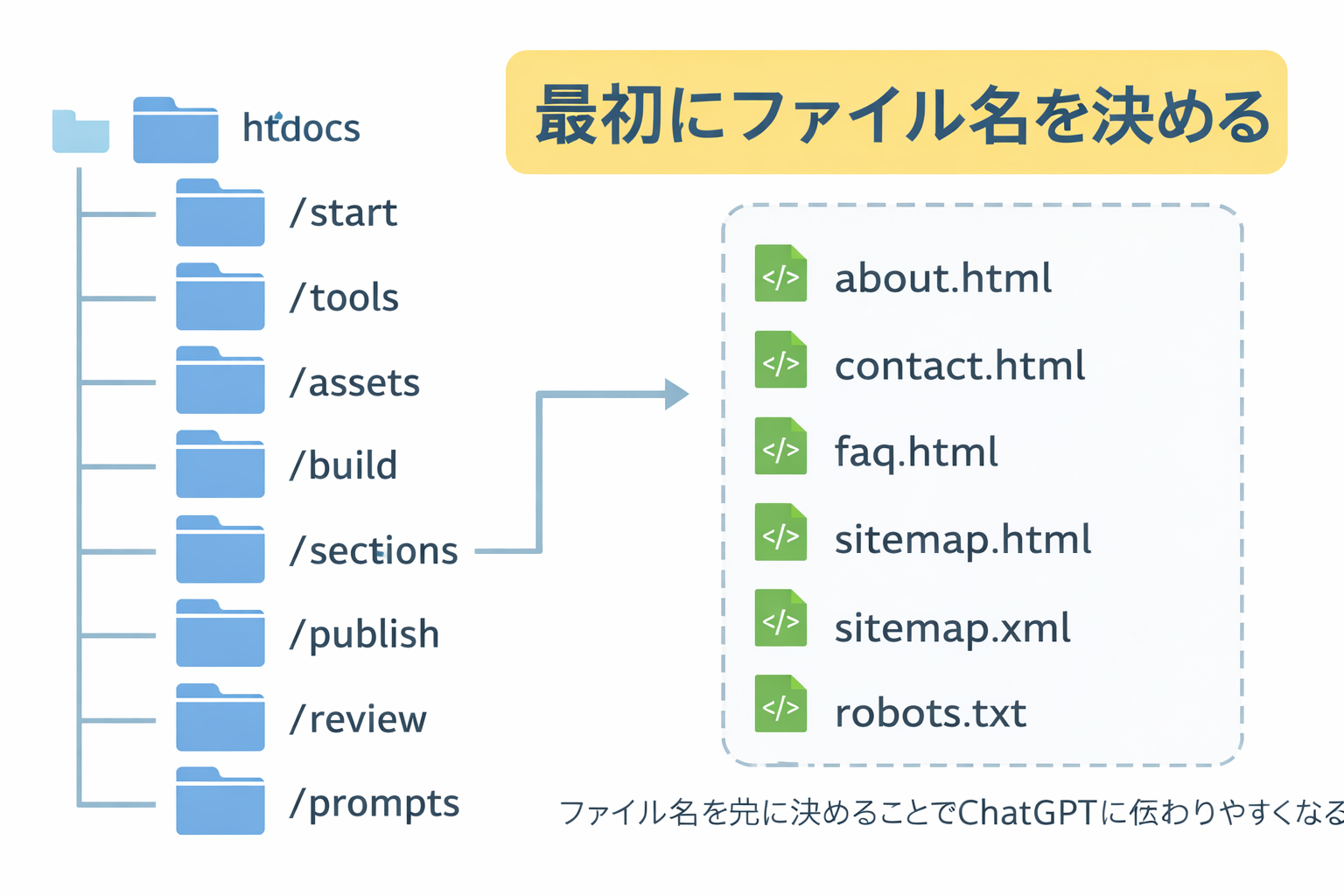
Real example: using image URLs for a training page
Suppose you want to build:
/en/training/step-03-decide-filenames.htmlA strong page-generation prompt could say:
Make /en/training/step-03-decide-filenames.html

Use these approved images:
https://website.co.jp/images/website-filenames-first.jpg
https://website.co.jp/images/webbie-pointing.jpg
https://website.co.jp/images/website-section-index-last.jpg

The filenames-first image should be the feature image.
The Webbie image should appear in a callout box.
The section-index image should support the lesson about index pages coming later.
That is exactly the kind of disciplined prompt this site encourages.
What to avoid
Avoid these weak habits:
- using local image paths in final HTML prompts after the live URLs exist
- pasting random unapproved image URLs
- changing image filenames after many pages already rely on them
- mixing temporary test assets with approved live assets
Do not quietly switch assets mid-project without updating your list.
If the asset changes, the master URL list should change too. Otherwise the workflow loses trustworthiness.
How this prepares the next step
After this step, you are in a much stronger position to continue the build because:
- the pages have stable filenames
- the images have stable live URLs
- the next HTML prompts can be much more precise
That means the next phase—building shared systems like site.css and site.js, then generating pages one by one—becomes much cleaner.
Stable page names plus stable asset URLs make strong prompts possible.
A lot of website chaos comes from trying to generate pages before those two things are settled.
What you should have by the end of this step
By the end of Step 07, you should have:
- a clean list of approved live image URLs
- the image URLs grouped by purpose where helpful
- a reliable place to store the list for reuse
- a stronger way to guide later HTML prompts
Mini cheat sheet
After uploading images:
- save the live URLs in one clean list
- group them by purpose if useful
- keep the list in your project notes
- paste relevant URLs into later HTML prompts
- rely on real assets, not placeholders
- update the list if approved assets changeCan you do these six things?
Completed: 0/6