
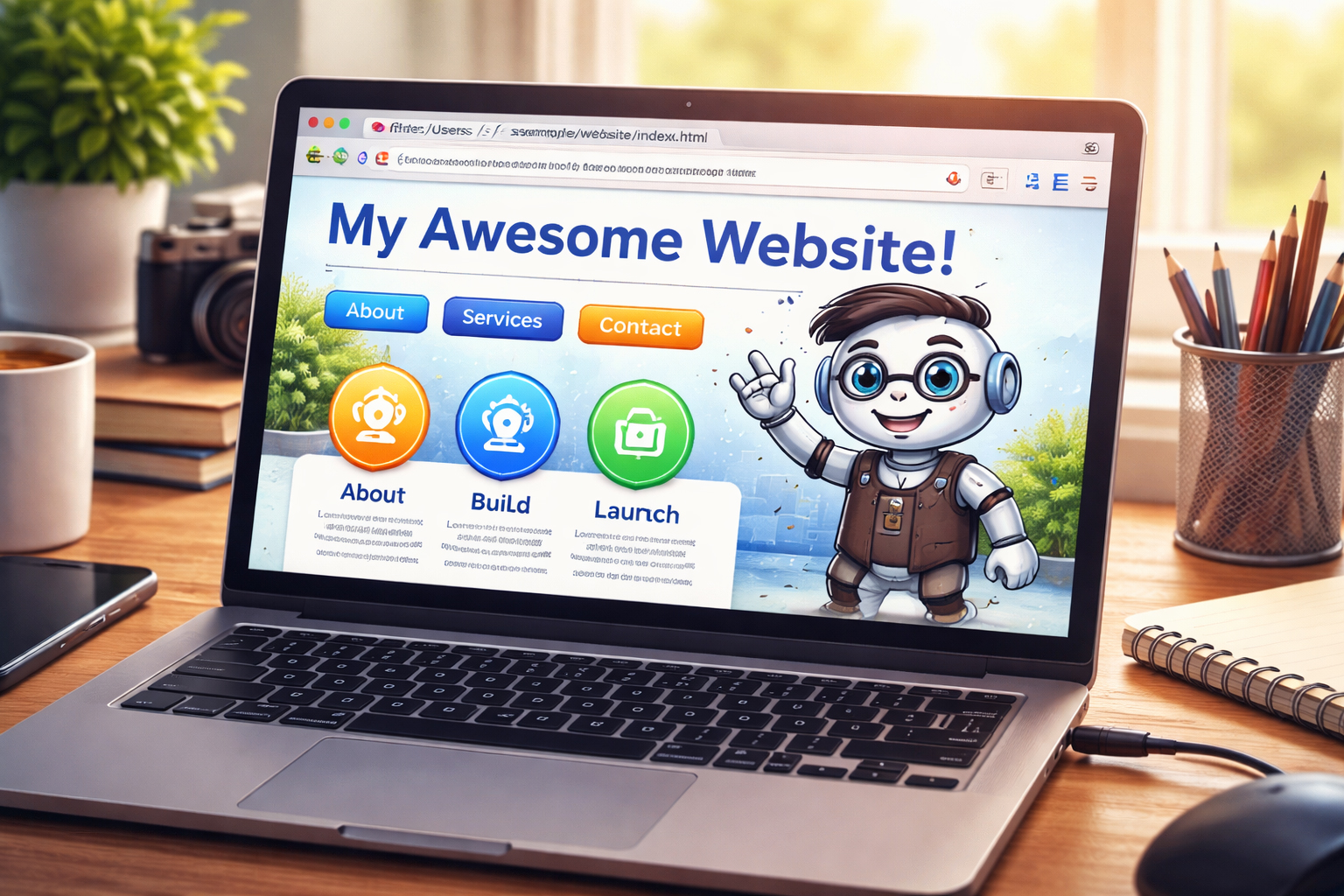

Do not start with hosting. Start with practice.
A simple static website can be built, reviewed, and improved entirely on your own computer. That means you can learn structure, filenames, images, HTML, and CSS before spending money or touching a live server.
What does “build locally first” mean?
It means your website files live on your own computer while you are learning and building. You create:
- HTML pages
- one shared
site.css - one shared
site.js - an
imagesfolder - clear page and folder structure
Then you open the files in a browser and review them locally before publishing anything online.
Why local-first is the best first step
1. It costs less
You do not need hosting just to learn how pages, folders, CSS, and images work together. Practice first. Pay later when you are ready.
2. It reduces fear
Many beginners worry that they will break a live site. On your own computer, you can experiment without that pressure.
3. It makes ChatGPT output easier to manage
When you are working locally, you can save files methodically, inspect them, and revise them before publishing.
4. It teaches structure first
Local practice forces you to understand folders, filenames, and relative paths. That is good training.
Learn first. Publish later.
That is one of the strongest ideas on this site. Build enough confidence on your own machine that hosting becomes the final step, not the first panic.
What kinds of websites work locally?
A basic static website works very well locally. That includes sites made from:
.htmlfiles.cssfiles.jsfiles- images such as
.jpg,.png, and.webp
For the kind of site you are learning to build here, local-first is a great starting point.
A static site is different from a full server-side application.
If your project needs databases, user logins, server-side code, or a CMS, you may eventually need a local server setup. But for a training site, business site, content site, or landing-page style project, local HTML/CSS/JS is often enough to begin.
What you need on your computer
To start local-first website building, you only need a few things:
| Item | Purpose | Example |
|---|---|---|
| A folder for your website | Holds the site files | C:\website\ |
| A text editor | Lets you save HTML, CSS, and JS | Notepad, VS Code, or similar |
| A browser | Lets you preview your pages | Chrome, Edge, Firefox |
| ChatGPT | Helps plan and generate the site files | Page copy, HTML, structure |
A clean starter folder structure
Here is a simple local website structure you can build right away:
C:\website\
├── index.html
├── site.css
├── site.js
├── images\
│   ├── hero.jpg
│   ├── mascot.jpg
│   └── diagram.jpg
├── en\
│   ├── index.html
│   └── training\
│       └── step-01-build-locally-first.html
└── ja\
    ├── index.html
    └── training\
        └── step-01-build-locally-first.html
You do not need every file on day one. What matters is that the structure stays clear.
How to preview a page locally
For a simple site, you can usually double-click an HTML file and open it in your browser. For example:
C:\website\index.htmlThat lets you see your page as a local file on your computer.
Simple example
Save this as index.html inside your local website folder:
<!doctype html>
<html lang="en">
<head>
  <meta charset="utf-8">
  <meta name="viewport" content="width=device-width, initial-scale=1">
  <title>My First Local Website</title>
  <link rel="stylesheet" href="site.css">
</head>
<body>
  <h1>My First Local Website</h1>
  <p>I am learning how to build websites before buying hosting.</p>
  <script src="site.js"></script>
</body>
</html>
Then create a small site.css:
body {
  font-family: Arial, sans-serif;
  margin: 2rem;
  line-height: 1.6;
}

h1 {
  color: #1f6fff;
}
Now open the HTML file in your browser. You already have a working local website.
How ChatGPT fits into local-first work
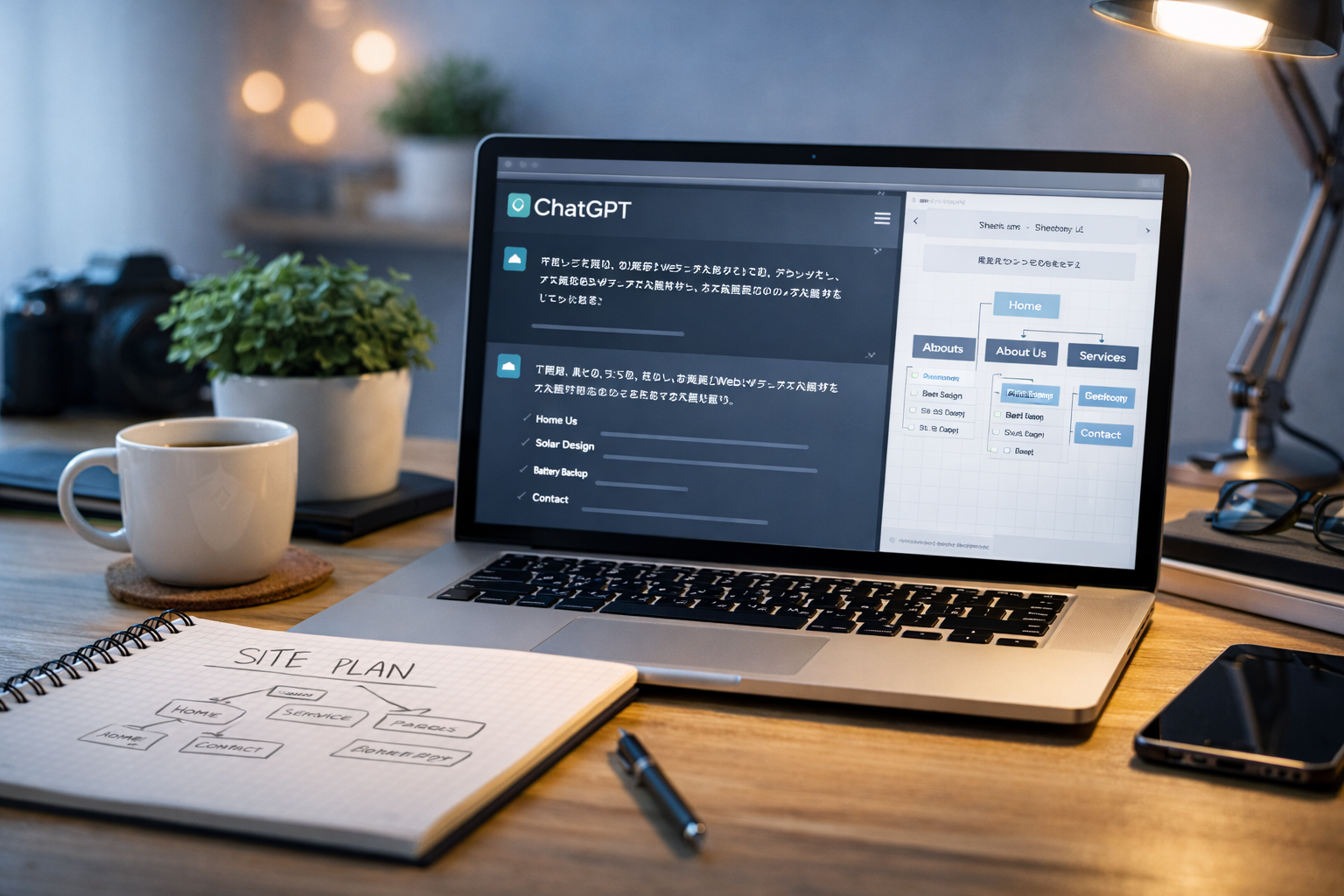
ChatGPT is especially useful here because you can ask it to help with:
- site planning
- page structure
- filenames
- HTML page creation
- CSS organization
- copywriting
- checklists and revision
Then you save the output locally, inspect it, and improve it. This keeps you in control.
What local-first helps you learn
Files and folders
You begin to understand where pages live, where images go, and how directories relate to URLs.
Shared CSS and JS
You learn why one site.css and one site.js can keep a whole site tighter and easier to manage.
Preview and revision
You get used to checking a page, noticing problems, and improving it before the public ever sees it.
Confidence
You stop thinking of websites as magic and start seeing them as organized files you can understand.
What local-first does not solve yet
Being honest about limits is part of good training. Local-first does not yet give you:
- a public website anyone can visit
- real online URLs
- search engine indexing
- live hosting behavior
- email forms or other server-side processing
That is fine. Those come later. Right now, the goal is learning the website craft first.
Real example: why this matters
A lot of beginners make this harder than it needs to be. They:
- buy hosting too early
- do not understand where files belong
- upload random filenames
- panic when something breaks
- feel dependent on whoever touches the server
Building locally first reverses that. It gives you:
- time to think
- space to make mistakes safely
- clear practice with real files
- a stronger base before going live
Simple local workflow for beginners
Create a website folder
Example: C:\website\
Create basic files
Start with index.html, site.css, and site.js.
Use ChatGPT to help you write and structure
Ask for clear filenames, clean HTML, and reusable shared CSS/JS.
Open pages in a browser
Review what you made on your own computer.
Improve before publishing
Fix structure, copy, layout, and image paths while everything is still safely local.
You can learn website building without paying for hosting first.
That makes this training more accessible. You do not need to commit money before you even understand the workflow.
Common beginner mistakes
1. Starting with a live server before understanding the file structure
This often creates stress and confusion. Build locally first, then publish from a position of understanding.
2. Mixing random files in random places
Keep one clean local folder for one site. Do not scatter files across your desktop.
3. Letting ChatGPT generate pages without saving them methodically
Save outputs into the correct folders with the correct filenames. Discipline matters.
4. Making the homepage first
For this training method, the homepage comes later. First, build the structure and the inner pages.
5. Thinking “local” means “not real”
Local work is real work. It is training, testing, drafting, and refining. It is how a lot of strong websites begin.
How this connects to the rest of the training
Once you accept the local-first idea, the rest of the workflow becomes much easier:
- define the site clearly
- decide filenames first
- make images
- save files and test locally
- upload only when ready
That is a calm sequence. It is one of the reasons this site exists.
Local-first is not avoidance. It is preparation.
The goal is not to hide from publishing forever. The goal is to arrive at publishing with structure, confidence, and control.
Mini cheat sheet
Local-first means:
- create your website files on your own computer
- preview pages in your browser
- revise before paying for hosting
- learn structure before publishing
- upload only when the files are readyCan you do these six things?
Completed: 0/6