
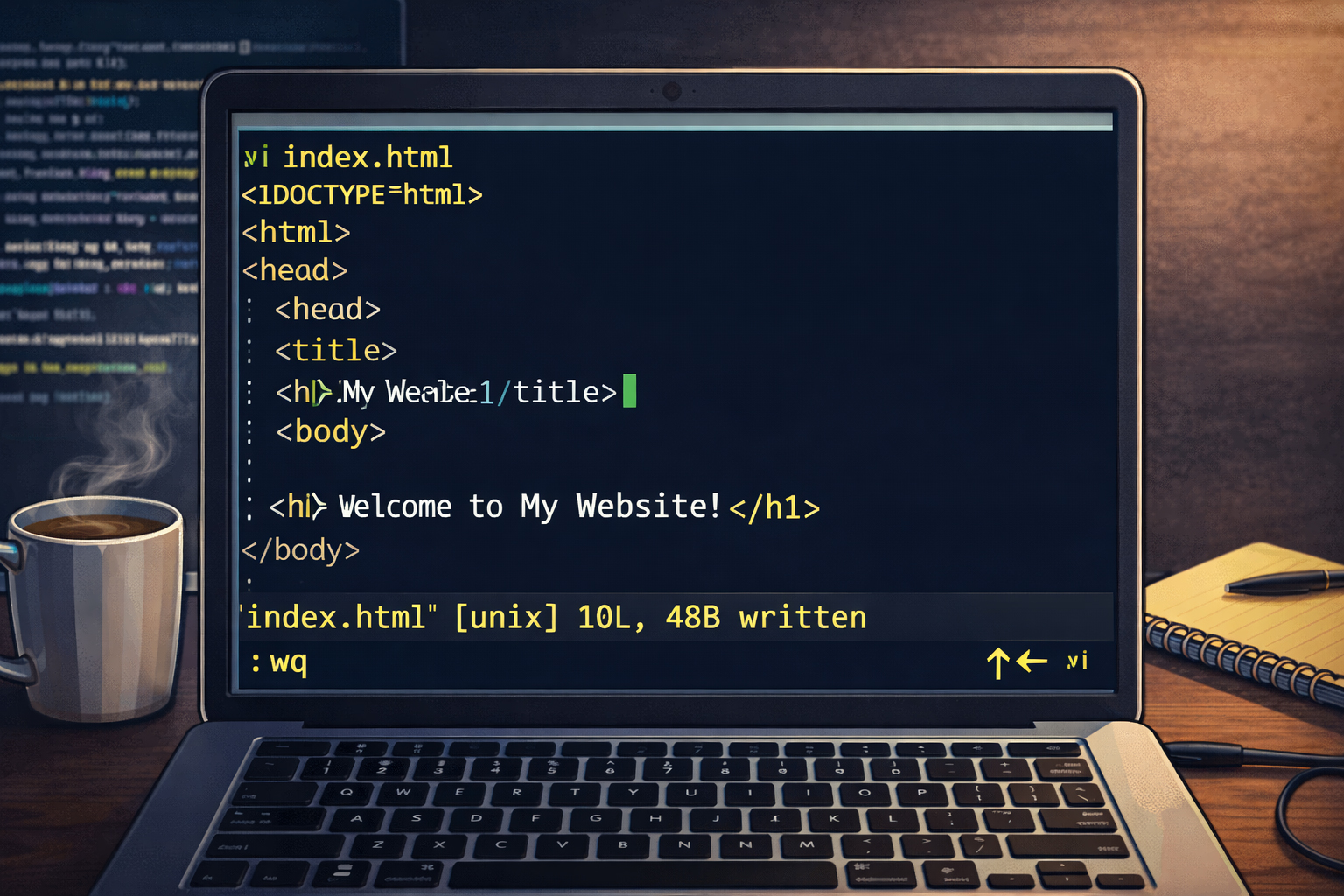

You do not need to master everything in vi.
For website work, a small set of commands will take you a long way. Learn how to open, insert, save, quit, search, delete a line, copy a line, and paste a line. That is enough to become much harder to trap.
What is vi?
vi is a text editor commonly available on Unix and Linux systems. If you connect to a server with SSH through PuTTY, there is a good chance vi or vim is already installed. That makes it valuable for website work: you can edit files even when you do not have a graphical editor available.
The biggest thing to understand is that vi is mode-based. It behaves differently depending on what mode you are in. That is why beginners sometimes feel stuck. Once you understand the modes, it gets much easier.
The three modes you should know
Normal mode
This is the default mode. In normal mode, keys are treated as commands. You move around, delete lines, copy lines, paste, search, and save from here.
Insert mode
This is where you type actual text into the file. You usually enter insert mode by pressing
i, a, o, or a similar key.
Command-line mode
From normal mode, press : to enter command-line mode. This is where you save, quit,
save-and-quit, or quit without saving.
When in doubt, press Esc.
If vi is acting strangely, you are probably not in the mode you think you are. Press Esc once or twice.
That usually returns you to normal mode.
The most important beginner commands
| Command | Meaning | Why it matters |
|---|---|---|
vi index.html |
Open a file in vi | Start editing a page |
i |
Insert before cursor | Start typing text |
Esc |
Return to normal mode | Get back to command mode safely |
:w |
Write file | Save changes |
:q |
Quit | Leave vi |
:wq |
Write and quit | Save and leave |
:q! |
Quit without saving | Escape from a bad edit |
dd |
Delete current line | Remove a bad line quickly |
yy |
Copy current line | Duplicate code structure |
p |
Paste after current line | Reuse copied lines |
/word |
Search forward | Find a class, tag, or text string |
n |
Next search match | Move through results |
Open a file
Once you are logged into your server with SSH, move into the correct folder first. Then open the file:
cd /home/youruser/public_html/en/tools
vi vi-basics.html
If the file already exists, vi will open it. If it does not exist yet, vi will create it once you save.
How to start typing
After the file opens, you are usually in normal mode. To type text, press:
i= insert before the cursora= append after the cursoro= open a new line below and enter insert mode
For beginners, i and o are usually enough.
Example
Suppose you open a new file and want to start a basic HTML page. Press i, then type:
<!doctype html>
<html lang="en">
<head>
  <meta charset="utf-8">
  <title>My Page</title>
</head>
<body>
  <h1>Hello</h1>
</body>
</html>
When you are done typing, press Esc.
How to save and quit
After pressing Esc to return to normal mode:
:wsaves:qquits:wqsaves and quits:q!quits without saving changes
Typical safe workflow
Esc
:w
:q
Or more commonly:
Esc
:wqUse :q! without guilt.
If you messed something up badly and want out, :q! is your friend. It is better to abandon a bad edit
than to save confusion into a live file.
Move around inside the file
You can use arrow keys on many systems, but traditional vi movement keys are still worth learning:
h= leftj= downk= upl= right
For basic website editing, arrow keys are usually fine. Still, it is good to know the classic keys in case your terminal behaves oddly.
Delete a line
In normal mode, move the cursor onto the line you want to remove and press:
ddThis deletes the whole line.
Example
Suppose you have a duplicated line in your HTML:
<h2>Tools</h2>
<h2>Tools</h2>
<p>Learn PuTTY, WinSCP, and vi.</p>
Put the cursor on the extra <h2>Tools</h2> line and press dd.
Copy and paste a line
In normal mode:
yy= copy current linep= paste it below
Example
Suppose you want to duplicate a navigation line or a card wrapper:
<a href="/en/tools/">Tools</a>
Move the cursor to that line, press yy, then p.
Now you can edit the new line rather than typing the whole structure from scratch.
Search inside a file
In normal mode, type a slash followed by what you want to find:
/site-footerThen press Enter.
Use:
n= next matchN= previous match
Why this is useful
Search is one of the fastest ways to work in HTML. You can search for:
- a class name like
hero - a section heading like
<h2> - a page title
- a URL path
- a specific image filename
Small but practical HTML edits in vi
Here are the kinds of website edits vi is very good for:
- Fix a typo in a heading or paragraph
- Change an image URL
- Update a navigation link
- Add one new card or list item
- Change a title tag or meta description
- Replace a phone number or email address
- Insert one new section into a page
It is less ideal for very large structural redesigns. For those, many people prefer editing locally first, then uploading the finished file.
Example: changing an image URL
Suppose this line is wrong:
<img src="/images/old-hero.jpg" alt="Website planning">You want it to use the approved asset:
<img src="https://website.co.jp/images/website-planning-chatgpt.jpg" alt="Website planning">A simple beginner workflow:
- Search for
/old-hero - Press
iorato edit - Fix the URL carefully
- Press
Esc - Save with
:w
Example: add one training step card
Let us say you already have one card like this:
<article class="card card--step">
  <div class="card__eyebrow">Step 1</div>
  <h3>Build Locally First</h3>
  <p>Practice on your own computer before paying for hosting.</p>
</article>
To make a second card:
- Move to the first line of the card block
- Use
yymultiple times, or copy line by line if needed - Paste below with
p - Edit the copied text
For larger blocks, traditional vi has more commands, but for beginners it is often easier to duplicate smaller pieces line by line or edit locally first in a full editor.
A very practical beginner workflow
Connect to the server
Use PuTTY or another SSH client to log in.
Go to the correct folder
Use cd to move into the directory for the page you want to edit.
Open the file with vi
Example: vi vi-basics.html
Search for the area to change
Use / plus a keyword, class, heading, or image path.
Make a small edit
Enter insert mode with i, make the change, then press Esc.
Save carefully
Use :w or :wq.
Common beginner mistakes
1. Typing commands while still in insert mode
If you type :wq and it appears inside the file, you were still in insert mode.
Press Esc, then try again.
2. Forgetting to save
Closing the terminal window is not the same as saving the file.
Use :w or :wq.
3. Saving a bad edit to a live page
When possible, back up the file first:
cp vi-basics.html vi-basics.html.bakThen edit. That gives you a quick fallback.
4. Editing the wrong file in the wrong folder
Always check where you are:
pwd
ls
That helps avoid changing the wrong page by accident.
Useful supporting commands before using vi
| Command | Purpose |
|---|---|
pwd |
Show current directory |
ls |
List files |
ls -l |
Detailed file list |
cd foldername |
Change directory |
cp file file.bak |
Make a backup copy before editing |
Simple real-world example
Imagine you need to update the Webbie image on a page from an old local path to the approved live image URL.
cd /home/youruser/public_html/en
vi about-webbie.html
Then inside vi:
- Press
/webbieand Enter - Find the image line
- Press
iorato edit - Replace the old path with:
https://website.co.jp/images/webbie-mascot.jpg - Press
Esc - Type
:wq
Should you edit everything in vi?
No. vi is excellent for:
- quick fixes
- small updates
- live server corrections
- editing when no graphical editor is available
For larger page builds, many people prefer:
- generate or edit locally first
- review in a browser
- upload with WinSCP
- use vi only for small server-side adjustments
vi is for control, not suffering.
Learn enough vi so that no one can tell you that a simple website change is impossible without them. That is the real value.
Mini cheat sheet
vi filename.html   open file
i                  insert mode
Esc                back to normal mode
:w                 save
:q                 quit
:wq                save and quit
:q!                quit without saving
dd                 delete line
yy                 copy line
p                  paste line
/searchterm        search forward
n next matchCan you do these six things?
Completed: 0/6