
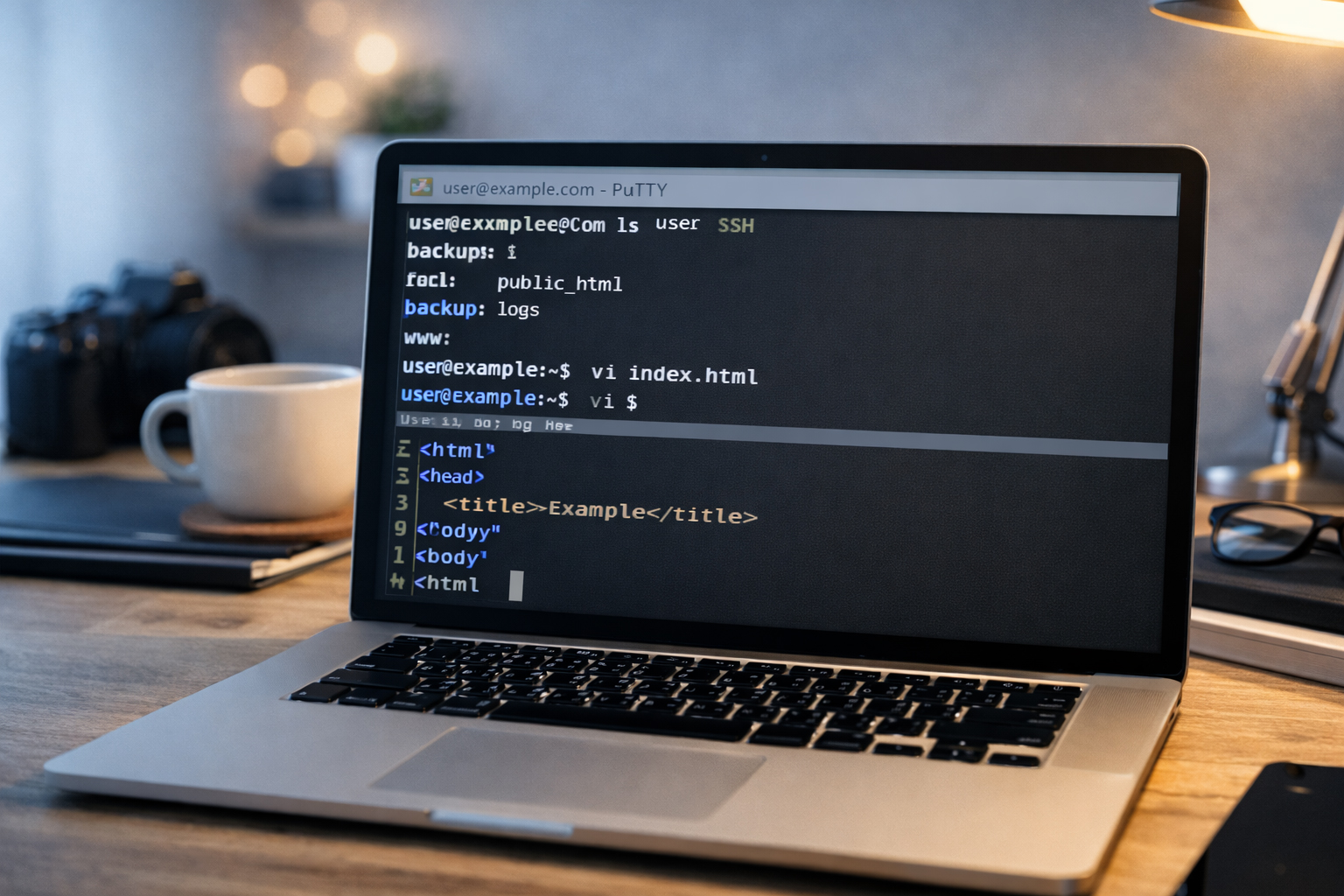

PuTTY is about confidence, not showing off.
You do not need to become a full-time server engineer. You need enough command-line skill to connect, look around, verify paths, make backups, and handle simple website tasks without panic.
What is PuTTY?
PuTTY is a Windows SSH client. In plain English, it is a program that lets you open a text-based connection to your server. Once connected, you can type commands and get answers directly from the machine hosting your website.
For website work, PuTTY helps with things like:
- checking where your website files actually live
- moving between folders
- listing files and directories
- making backup copies before edits
- opening files with
vi - confirming whether a page, image, or folder exists
Why PuTTY matters if you already have WinSCP
WinSCP is excellent for visual file transfer. PuTTY is excellent for direct control. There are times when you want to know the exact folder path, run a quick command, or verify something without guessing. PuTTY lets you do that.
WinSCP helps you see files. PuTTY helps you understand the server.
What is SSH?
SSH stands for Secure Shell. It is a secure way to connect to a server remotely. PuTTY is commonly used to make an SSH connection from a Windows computer.
If someone gives you server login details for PuTTY, they will usually give you:
| Field | What it means | Typical example |
|---|---|---|
| Host name | The server address | example.com or an IP address |
| Port | The SSH port | 22 |
| User name | Your server account name | youruser |
| Password | Your login password | provided by host or admin |
How to connect with PuTTY
- Open PuTTY.
- In the Host Name field, enter your domain or server IP.
- Make sure the port is usually
22. - Make sure the connection type is SSH.
- Click Open.
- If prompted, accept the server key the first time.
- Enter your username.
- Enter your password.
Passwords often do not show as you type.
That is normal in terminal logins. You may not see stars or dots either. Type carefully and press Enter.
What a successful login feels like
After logging in, you will usually see a command prompt. It might look like one of these:
[youruser@example ~]$
youruser@server:~$
$
That prompt means the server is ready for commands.
The first five commands every website owner should know
| Command | Meaning | Why it matters |
|---|---|---|
pwd |
Print working directory | Shows where you are right now |
ls |
List files | Shows what is in the current folder |
cd foldername |
Change directory | Moves into a folder |
cd .. |
Go up one folder | Backs out to the parent directory |
mkdir newfolder |
Make directory | Creates a new folder |
1. Use pwd to find out where you are
One of the most helpful commands is:
pwdIt prints your current directory path. For example:
/home/youruser/public_html/en/toolsThis is incredibly useful because many mistakes happen when people think they are in one folder but are actually in another.
Good habit
Before editing or copying files, run pwd. It keeps you grounded.
2. Use ls to see what is here
To list the files and folders in the current directory, run:
lsYou might see output like:
index.html
site.css
site.js
images
en
ja
For more detail, use:
ls -lThat gives a fuller list with permissions, dates, and sizes.
3. Use cd to move around
To move into a folder:
cd public_htmlThen:
cd enThen:
cd toolsTo go back up one level:
cd ..Example workflow
pwd
ls
cd public_html
ls
cd en
ls
cd tools
pwd
This sequence teaches you more about your server than randomly clicking around.
4. Use mkdir to create a folder
If a directory does not exist yet, create it with:
mkdir toolsExample:
cd /home/youruser/public_html/en
mkdir tools
That creates:
/home/youruser/public_html/en/toolsCreate only the folders you planned.
Random folder creation leads to messy websites. Decide your filename tree first, then create only what belongs there.
5. Use cp to make a backup copy
Before changing a live file, it is smart to make a backup:
cp index.html index.html.bak
That creates a copy named index.html.bak.
For a specific page:
cp winscp-basics.html winscp-basics.html.bakThis is one of the most practical commands on the whole page.
Helpful extra commands
| Command | Meaning | Practical use |
|---|---|---|
mv oldname newname |
Move or rename | Rename files or move them into another folder |
rm filename |
Remove file | Delete a file carefully |
clear |
Clear terminal screen | Start fresh visually |
vi filename.html |
Open file in vi | Edit a page directly |
Use rm with respect.
Deleting the wrong file on a live server is a bad feeling. If you are not sure, make a backup first or rename the file instead of deleting it immediately.
Real website example: checking where your files live
Suppose you just logged in and want to find the English tools section of your site.
pwd
ls
cd public_html
ls
cd en
ls
cd tools
pwd
ls
If everything is where you expect it to be, the final pwd might show:
/home/youruser/public_html/en/tools
And the final ls might show:
index.html
putty-basics.html
winscp-basics.html
vi-basics.html
That is a huge win. It means you are not guessing anymore.
Real website example: create a new folder for history pages
If your English history folder does not exist yet:
cd /home/youruser/public_html/en
mkdir history
cd history
pwd
Now you know exactly where future history pages will go.
Real website example: back up a page before editing
Let us say you want to edit about.html:
cd /home/youruser/public_html/en
cp about.html about.html.bak
ls
The file list should now show both versions.
Real website example: open a page in vi
Once you are in the correct folder:
vi putty-basics.htmlThen you can make a small edit directly on the server. If vi feels new, read the full vi Basics guide next.
How PuTTY fits into your website workflow
Plan the site structure
Know your folders and filenames before you touch the live server.
Use PuTTY to verify paths
Find out exactly where files belong and what already exists.
Use WinSCP to upload files visually
Publish finished files and image assets with confidence.
Use vi for small live edits
Fix a typo, update a title, or adjust one line when needed.
Good beginner habits in PuTTY
- Run
pwdoften. - Run
lsbefore editing or copying. - Use
cpto back up important files first. - Move carefully, one folder at a time.
- Do not pretend you know where you are—check.
Common beginner mistakes
1. Logging in and typing random commands immediately
Slow down. Start with pwd and ls. Always orient yourself first.
2. Forgetting where the live website folder is
Many hosting accounts use public_html, but not all. Use the server to tell you, not your memory alone.
3. Editing or deleting files without a backup
A quick cp file file.bak can save a lot of pain.
4. Confusing local and remote work
PuTTY connects you to the server. It does not show files on your own computer. For local vs remote side-by-side work, use WinSCP.
5. Fear of the command line
The command line feels serious because it is direct. That is also why it is useful. The solution is not avoidance. The solution is learning the first few safe commands well.
What PuTTY is especially good for
- verifying server paths
- checking whether folders and files exist
- making backups before edits
- opening pages in vi
- creating folders in a controlled way
What PuTTY is not best for
- visual file drag-and-drop
- large image management
- design work
- building a whole site from scratch if you are uncomfortable with terminals
For those tasks, use WinSCP and your local editor. PuTTY is part of the toolkit, not the whole workflow.
Simple practical session example
login to server

pwd
ls
cd public_html
ls
cd en
ls
cd tools
pwd
ls
cp putty-basics.html putty-basics.html.bak
vi putty-basics.html
This sequence is calm, realistic, and strong. It shows control without drama.
PuTTY helps you stay hard to trap.
When you can connect to your own server, locate your own files, and verify your own paths, other people have less power to make your website feel mysterious or unreachable.
Mini cheat sheet
pwd                 show current folder
ls                  list files and folders
ls -l               detailed file list
cd foldername       move into a folder
cd ..               go up one level
mkdir newfolder     create a new folder
cp file file.bak    make a backup copy
vi filename.html    open a file in vi
clear clear the terminal screenCan you do these six things?
Completed: 0/6