


Good image planning makes later HTML better.
If you create or approve the image set first, later page prompts can point to real assets instead of drifting into placeholders. That helps the whole site feel more deliberate.
Why image planning comes this early
By this point in the workflow, you already know:
- the site should be built locally first
- the site has a clear purpose and audience
- the filenames and folder structure are defined
Now it is time to create the visual backbone. This is where you decide what the site should look like, what recurring images it needs, and what image assets should be ready before HTML generation.
Do not make pages while still imagining the visuals vaguely.
If the images are unsettled, page structure often becomes weaker. Strong visuals help shape strong sections.
What kinds of images a site usually needs
Most sites do not need hundreds of images at the start. They need the right categories of images:
Hero images
Large visual anchors for the homepage or major section pages.
Support images
Images used inside articles, lesson pages, or section intros.
Diagram images
Workflow charts, file-structure illustrations, process visuals, and teaching graphics.
Mascot images
A character system like Webbie that adds personality and consistency.
For website.co.jp, the image categories are clear
This site is not a random gallery site. It is a training site. That means the image set should directly support teaching.
In this case, the main categories are:
- homepage hero images
- planning and workflow images
- tool images for PuTTY, WinSCP, and vi
- process diagrams for filenames, sitemap, section indexes, and homepage timing
- Webbie mascot images
- Professor Webbie for more advanced or authority-driven pages
Image planning should be intentional
A weak image workflow sounds like:
- “We will find something later.”
- “Maybe we will just use whatever looks nice.”
- “Let’s make the page and worry about images later.”
A strong image workflow sounds like:
We need:
- one main hero image
- a planning image
- a workflow diagram
- a filenames-first image
- a local-preview image
- dedicated tool images
- Webbie brand images
- a small set of section support graphics
That second approach gives the project shape.
What makes a good website image?
| Quality | What it means | Why it matters |
|---|---|---|
| Relevant | The image fits the topic of the page | Makes the page feel intentional |
| Consistent | The style matches the rest of the site | Improves visual trust |
| Clear | The viewer can understand the image quickly | Especially important for teaching pages |
| Reusable | The image can support multiple sections or layouts | Makes the library stronger |
| Named well | The filename is clean and predictable | Helps HTML generation later |
Hero images vs teaching images
Many beginners treat all images the same. They are not the same.
Hero images
Hero images are meant to:
- set mood
- create authority
- establish the site visually
- make a section feel strong right away
Teaching images
Teaching images are meant to:
- explain a concept
- support a step
- make a workflow more understandable
- reduce confusion
On a training site like this one, both types matter.

Why mascots help on a training site
A mascot is not required for every site, but for a teaching site it can be a real strength. Webbie helps this site by:
- making the site more memorable
- softening technical topics
- giving recurring advice boxes a consistent voice
- creating brand identity
- adding warmth without weakening the instructional tone
That is why website.co.jp uses:
webbie-icon-square.jpg
webbie-header-logo.jpg
webbie-mascot.jpg
webbie-pointing.jpg
webbie-review.jpg
professor_webbie.jpg

How to decide what images you need
The simplest approach is to think by section.
Example for a training site
Homepage:
- main hero image
- mascot image
- section support visuals

Training section:
- workflow diagram
- filenames-first image
- local-preview image
- image-urls image
- homepage-last image
- section-index-last image
- sitemap-robots image

Tools section:
- PuTTY image
- WinSCP image
- vi image

Advanced/history pages:
- Professor Webbie
- authority-style visuals
- archive or historical illustrations if available
This kind of list prevents random image decisions later.
Why image filenames matter too
Just like HTML filenames, image filenames should be clean and stable. Good image naming makes later prompts much easier.
Good examples
make-website-hero-main.jpg
website-planning-chatgpt.jpg
website-filenames-first.jpg
website-putty-terminal.jpg
website-winscp-files.jpg
website-vi-editor.jpg
website-local-preview.jpg
website-image-urls.jpg
website-homepage-last.jpg
website-sitemap-robots.jpg
website-section-index-last.jpg
Weak examples
hero-final.jpg
new-image.jpg
chatgpt-pic-2.jpg
screenshot123.jpg
final-really-final.jpg
Stable, descriptive filenames are one of the hidden strengths of good website production.
Do not generate ten pages that reference imaginary images.
Make the image plan first, create the approved image set, and only then start building pages around those assets.
How to ask ChatGPT for image planning
A strong prompt at this stage might sound like:
I have already defined the site and filenames.
Now help me decide the image set before we build the pages.
Please list:
1. the hero images needed
2. the section images needed
3. the diagram images needed
4. the mascot or character images needed
5. clean final filenames for each image
6. which images are essential and which can wait
This kind of prompt keeps image planning structured instead of vague.
How to ask ChatGPT to generate images
Once the image list is defined, you can create them one by one. A strong image request usually includes:
- what page or section the image is for
- what the image should show
- the tone or mood
- whether it is a photo-style image, diagram, or illustration
- what filename the image is meant to become
Example prompt
Make the image website-local-preview.jpg.
It should show a laptop previewing a website locally on a desk,
with a beginner-friendly, reassuring feel.
This image is for a training page about building locally before hosting.
That is much better than simply saying “make a website image.”
What to do after the images are made
Once the image set exists, you are not done. You should:
- approve the images
- decide the final filenames
- keep a master list of the approved image names
- prepare to upload them
- use their real URLs in later HTML prompts
That next step is important enough to deserve its own lesson later.
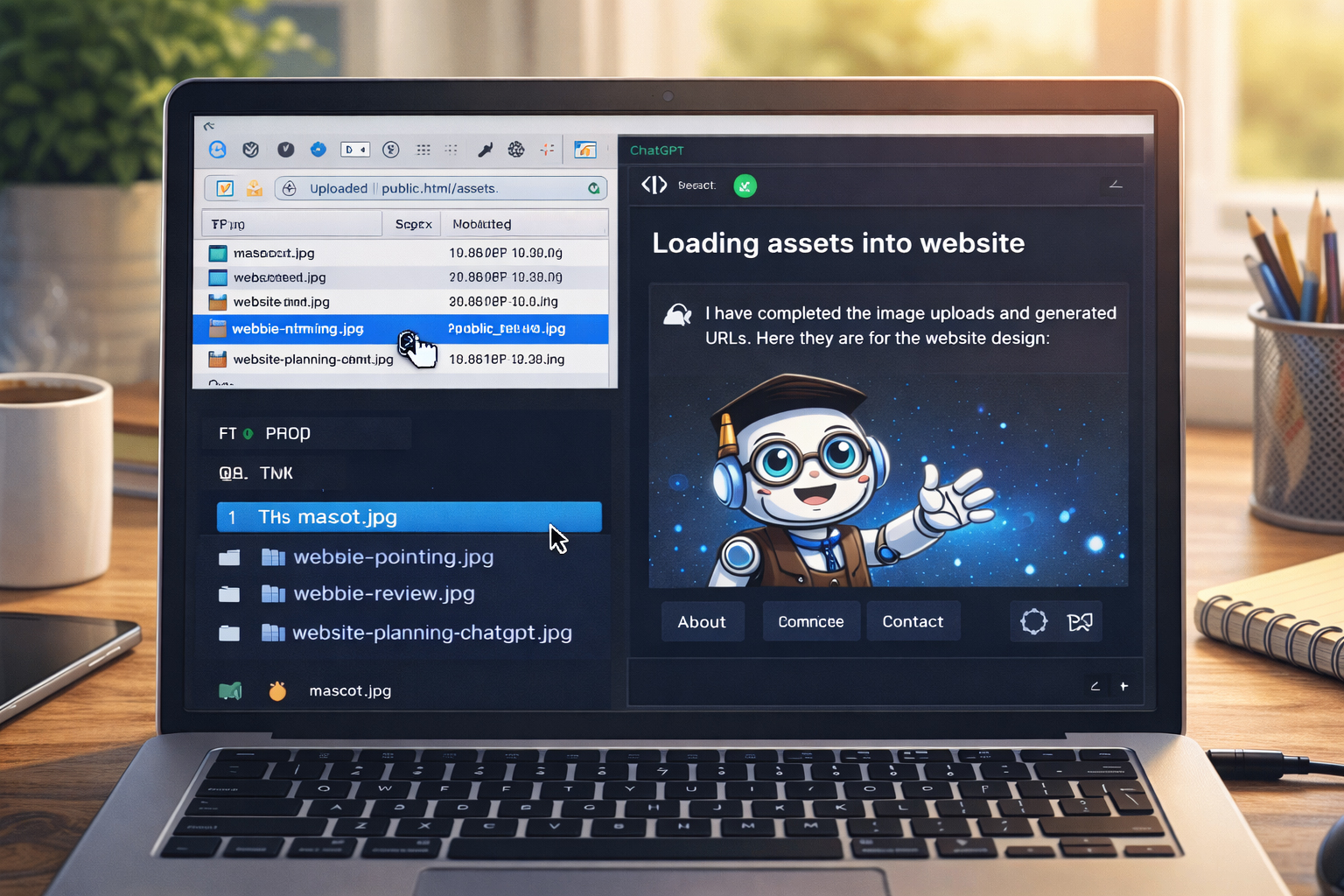
How image discipline improves HTML generation
Once the images are approved and named properly, later page generation gets better because you can say:
Use:
https://website.co.jp/images/make-website-hero-main.jpg
https://website.co.jp/images/webbie-pointing.jpg
https://website.co.jp/images/website-workflow-diagram.jpg
That keeps the page grounded in real assets rather than placeholders.
Real example: image planning for website.co.jp
A practical approved image set for this site includes:
https://website.co.jp/images/make-website-hero-main.jpg
https://website.co.jp/images/professor_webbie.jpg
https://website.co.jp/images/robot-mascot-in-modern-workspace.jpg
https://website.co.jp/images/webbie-header-logo.jpg
https://website.co.jp/images/webbie-icon-square.jpg
https://website.co.jp/images/webbie-mascot.jpg
https://website.co.jp/images/webbie-pointing.jpg
https://website.co.jp/images/webbie-review.jpg
https://website.co.jp/images/website-filenames-first.jpg
https://website.co.jp/images/website-grading-review.jpg
https://website.co.jp/images/website-planning-chatgpt.jpg
https://website.co.jp/images/website-putty-terminal.jpg
https://website.co.jp/images/website-site-css-js.jpg
https://website.co.jp/images/website-winscp-files.jpg
https://website.co.jp/images/website-workflow-diagram.jpg
https://website.co.jp/images/website-vi-editor.jpg
https://website.co.jp/images/website-local-preview.jpg
https://website.co.jp/images/website-image-urls.jpg
https://website.co.jp/images/website-homepage-last.jpg
https://website.co.jp/images/website-sitemap-robots.jpg
https://website.co.jp/images/website-section-index-last.jpg
This is exactly the kind of asset discipline that makes later page creation smoother.
Common beginner mistakes
1. Treating images as an afterthought
This usually produces weaker layouts and more placeholders later.
2. Using inconsistent visual styles
If half the site looks photographic and the other half looks random or low-quality, the whole site feels less trustworthy.
3. Not naming images carefully
Messy image naming becomes a long-term problem when it is time to write HTML.
4. Creating more images than the site actually needs
Build a useful core set first. You can expand later.
5. Forgetting the educational role of diagrams
For a training site, diagrams and process visuals are often more useful than generic decorative photos.
What you should have by the end of this step
By the end of Step 04, you should have:
- a planned image set for the site
- approved or mostly approved image categories
- clear final filenames for the image assets
- a strong idea of which images are essential
- a repeatable style for the site visuals
- a ready-to-upload asset list for the next steps
The stronger your image system, the tighter your HTML can become.
Approved images give the project visual stability. That helps every later page feel more real and less improvised.
Mini cheat sheet
Before building pages:
- decide what images the site needs
- separate hero, support, diagram, and mascot images
- use clean final filenames
- keep the visual style consistent
- approve the image list before HTML generation
- prepare to upload the assets and use real URLs laterCan you do these six things?
Completed: 0/6